
Start with an authorized source and a compatible package.
Installation walkthrough
How to install Insta Pro APK on Android
Know which setting you are changing and when to stop. The installer permission belongs to your browser or file manager, not to the APK itself.
Independent guidance · no affiliation with Instagram, Meta or the Insta Pro developer.
THE QUICK TAKE
Before you begin.
Allow installation only for the source you deliberately chose.
Read warnings, then revoke the installer permission.
Before you start
Check the current Insta Pro source and release status. If you cannot identify the file’s legitimate source or the Android version it supports, pause before opening it.
- Check your phone’s Android version and the package’s declared requirement.
- Leave space for installation and app data.
- Preserve local drafts before replacing or removing an app.
- Make sure you can still access your recovery email or phone if signing in becomes necessary.
About this walkthrough
These are general steps based on Google’s Pixel guidance. Some steps apply to Android 8.0 and later; other devices can use different menus. No Insta Pro build has been installed or tested for this guide.
The four-step Android sequence
01
Find the reviewed file
Open your browser’s downloads or your file manager and locate the APK you intended to save. Check that the download completed and that it matches the source’s release record. A webpage asking you to install a separate helper app is a reason to cancel and recheck.
02
Review the source permission
Android may open a Settings prompt for the browser or file manager. Check which app is named. If you choose to proceed, allow installation only for that selected source. You do not need to turn off Play Protect.
03
Read the installer message
Check the displayed app name and whether Android calls this a new installation or an update. Stop if Play Protect blocks the file or Android shows a developer or sensitive-access warning. Repeated attempts will not resolve an unknown source or an incompatible package.
04
Turn the permission off
After installation or cancellation, revoke the source permission. On Pixel: Settings → Apps → Special app access → Install unknown apps. Select the browser or file manager and turn off Allow from this source. Your phone may use different labels.
SEE THE NEXT STEP
Visual checklists for this step
Simple guide diagrams to keep the important checks together.
Swipe through the checklists, or open a diagram to read it at full size.
 Enlarge checklist
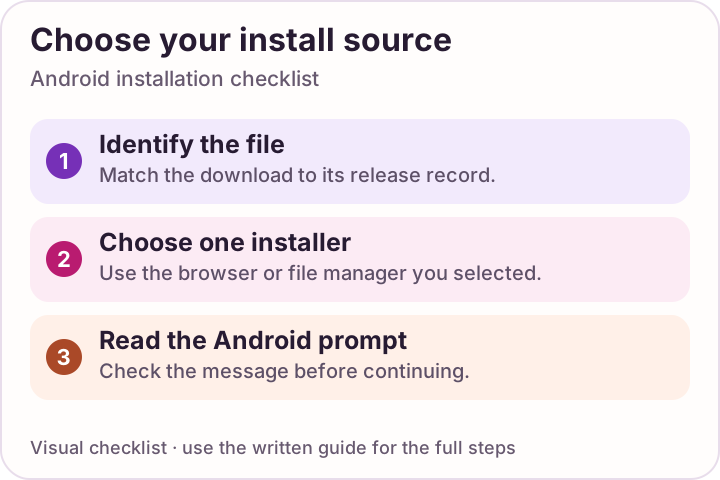
Choose one installer
Allow installation only for the app you deliberately chose. Stop if Android raises a security warning.
 Enlarge checklist
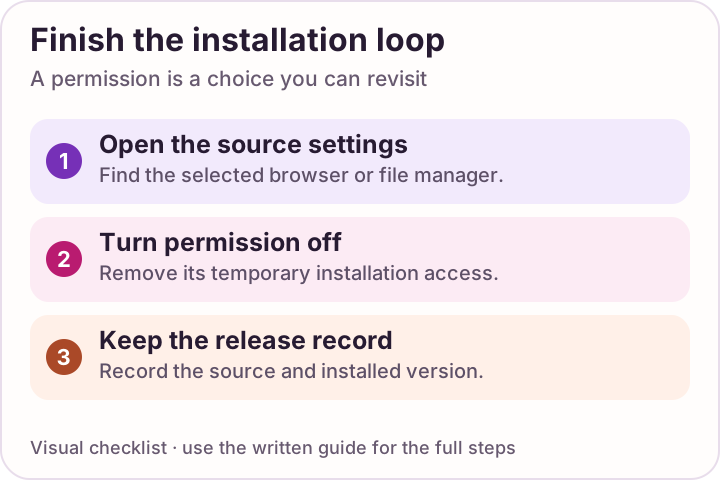
Close the permission loop
After installation, turn the selected installer permission off again.
If installation fails, keep the exact message
“App not installed,” “invalid package” and a security warning are different problems. Write down the wording before trying another step.
First installation
Check completion, storage and the package’s Android requirement. Use the installation-error checklist.
Replacing an existing app
Check package and signing identity in the update guide. Do not uninstall first simply to remove the error; that can erase app-local data.
Before using a modified client for an account, read the account-security considerations. Successful installation alone does not establish trustworthy behavior.
A FEW MORE ANSWERS
Questions, answered.
Do I need to disable Play Protect?
No. Keep it on. If it warns about or blocks the package, stop and investigate through the legitimate source rather than bypassing the warning.
Where is Install unknown apps?
On Pixel, Google’s guidance uses Settings, Apps, Special app access, then Install unknown apps. Select the browser or file manager involved. Other manufacturers can use different labels.
Why is the permission attached to my browser?
Android’s per-source control governs the app attempting the installation, such as your browser or file manager. Give only that chosen source temporary access and remove it afterward.
Should I delete official Instagram first?
Do not remove a working app as a routine first step. Coexistence and replacement depend on package identifiers and signatures, and uninstalling can remove local data. No specific Insta Pro arrangement has been tested here.
Sources & review notes
Guidance sources reviewed 10 October 2026. Menus and product behavior may change; use the linked instructions for your device.