
Write down the exact message and when it appears.
Troubleshooting
Insta Pro not working? Choose your symptom.
Start with what is on your screen. An installer error, a crash and a login challenge need different checks.
Independent guidance · no affiliation with Instagram, Meta or the Insta Pro developer.
THE QUICK TAKE
Before you begin.
Try reversible checks before deleting app data.
Compare account access through official Instagram.
The APK will not install
| Message or behavior | Useful next check | Avoid |
|---|---|---|
| Parsing or invalid-package error | Check that the file finished downloading and matches the package intended for your Android version. | Repeatedly opening an incomplete or incompatible file. |
| App not installed | Check free space. If replacing an app, compare package identity and signing continuity. | Assuming more permissions will fix it. |
| Conflict with an existing package | Identify the installed app involved, then compare the source’s package identifier and signing record. An app name or icon cannot settle identity. | Uninstalling a working app merely to remove the conflict message. |
| Play Protect or developer warning | Stop. Check the legitimate source and the warning before taking further action. | Switching off protection or following a bypass tutorial. |
| A second helper app is demanded | Cancel and check the page or download destination. | Installing extra software to unlock a file. |
The Android installation guide explains the normal permission flow. For a replacement package, use package and signature update checks.
SEE THE NEXT STEP
Visual checklists for this step
Simple guide diagrams to keep the important checks together.
Swipe through the checklists, or open a diagram to read it at full size.
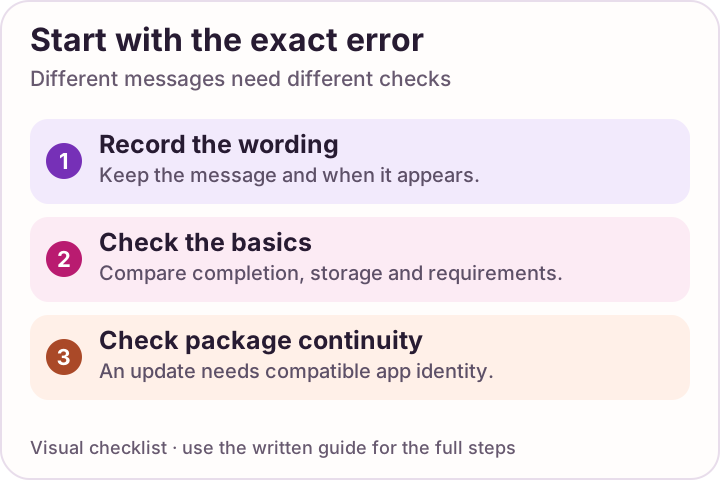 Enlarge checklist
Start with the error
Read the installation message before changing settings or replacing a working app.
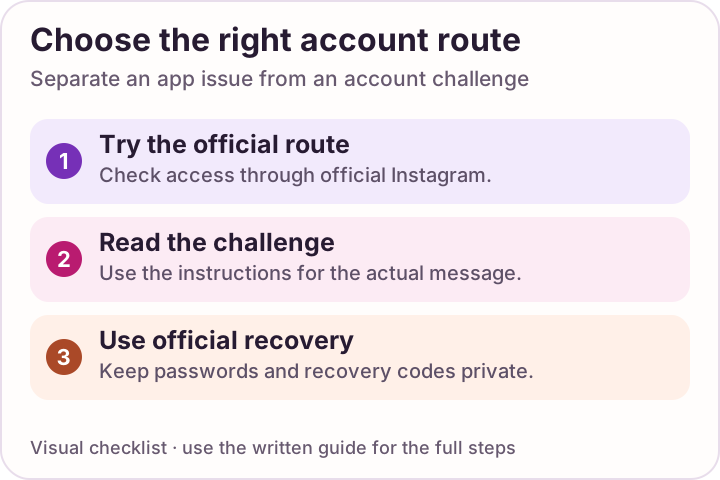 Enlarge checklist
Use official account help
Account recovery belongs with official support. Keep passwords and recovery codes private.
The app crashes or will not open
- Restart the phone. Retry the same action once and note whether the crash happens at launch or later.
- Force stop the app. Use its entry in Android Settings, then reopen it.
- Try cache cleanup if available. Read the button carefully. Clear cache and Clear storage/data are different actions.
- Check updates. Review supported Android updates and the app’s legitimate update source before replacing anything.
Keep local data in mind
Clearing storage or uninstalling can remove local drafts, settings and sign-in information. Start with the reversible checks above. A defective or incompatible build may still need a publisher fix.
Login fails or shows an account challenge
Check access through official Instagram on Google Play or Instagram’s website. If those also fail, use the recovery help offered by the official service.
Official access also fails
Follow the sign-in or recovery flow offered by the official service. A new modified APK is not an account-recovery method.
Only modified access fails
Record the displayed error, app version and source. Official access working narrows the comparison but does not establish the cause. Avoid another “login fix” APK.
An unfamiliar session appears
Review sessions, passwords, login alerts and two-factor authentication from a trusted device using Meta’s account-security guidance.
Never send a password, two-factor code or recovery code to someone offering help.
The feed, messages or saving do not work
01
Check the connection
Open another website on the same connection. If it also fails, investigate connectivity before changing the app.
02
Compare the same task
Try official Instagram. Note whether every item fails or only a particular post, message or action.
03
Check the relevant access
For saving or notifications, review the permission needed for that action in Android’s app settings. Granting every permission is not a useful diagnosis.
These are general Android checks, not confirmed fixes for a particular Insta Pro build. This page does not identify a live outage.
A download fails, disappears or will not play
First decide whether no file was created, a file was saved but you cannot locate it, or the saved file will not open. Those observations call for different checks.
| What happened | Next check | What to record |
|---|---|---|
| Nothing is saved | Check connection, free space and the access relevant to saving. Try another permitted sample of the same media type. | Any error or completion message, and whether every sample fails. Granting every permission is not a diagnosis. |
| It says saved, but the file is missing | Check the destination named by the app or its save notification, if one appears. Search your file manager by the filename or attempt time. | The reported destination and where you looked. Do not assume a particular Insta Pro folder exists or that a gallery view is the whole file system. |
| The file will not open | Note its file type and size. Check whether the same permitted media plays in its original source. | The exact playback error. These clues narrow the problem without proving whether the app, source or file caused it. |
Use content you own or have permission to save. For a useful report, follow the short issue-record checklist below.
Keep a short record of the problem
A useful report includes the phone model, Android version, displayed app version, source URL, exact error, time and steps that reproduce it. For example: “The app opens, then closes when I tap Messages; restarting did not change it.” Replace that example with what actually happened on your phone.
Remove account names and private messages from screenshots. Share the report only with a publisher or support route you can identify.
A FEW MORE ANSWERS
Questions, answered.
Should I clear cache or clear storage?
Try cache first if your device offers it. Clearing storage/data can remove local information and sign-in state. Preserve anything important before taking that step.
Will reinstalling solve every problem?
No. It may remove local data and will not necessarily fix an account problem, an incompatible package or a defective build. Start with the symptom.
Does an account challenge prove Insta Pro caused it?
No. The message alone does not identify the cause. Use the official service’s recovery and security help; this guide cannot determine an enforcement decision.
Where are downloaded Insta Pro files stored?
No tested build here establishes a fixed folder. Check a destination or filename shown by the app, then search your file manager around the time of the attempt. Distinguish a missing gallery entry from a file that was never created.
Sources & review notes
Guidance sources reviewed 10 October 2026. Menus and product behavior may change; use the linked instructions for your device.