
Record the installed version and preserve local items first.
Update checklist
How to update Insta Pro
An update should belong to the app you already have. Check its source and identity before replacing files or deleting local data.
Independent guidance · no affiliation with Instagram, Meta or the Insta Pro developer.
THE QUICK TAKE
Before you begin.
Match package identity and signing continuity.
Do not uninstall immediately when an update fails.
Record what you have before changing it
01
Note the installed version
Record the version displayed by the app, your phone’s Android version and the source you used. Keep the exact error if this update is meant to solve a problem.
02
Preserve local items
Save important drafts or files using the options actually available to you. Do not assume your online account contains every local item.
03
Check recovery access
Make sure you can access the account’s recovery email or phone. Keep authentication and recovery codes private.
Check that the file is really an update
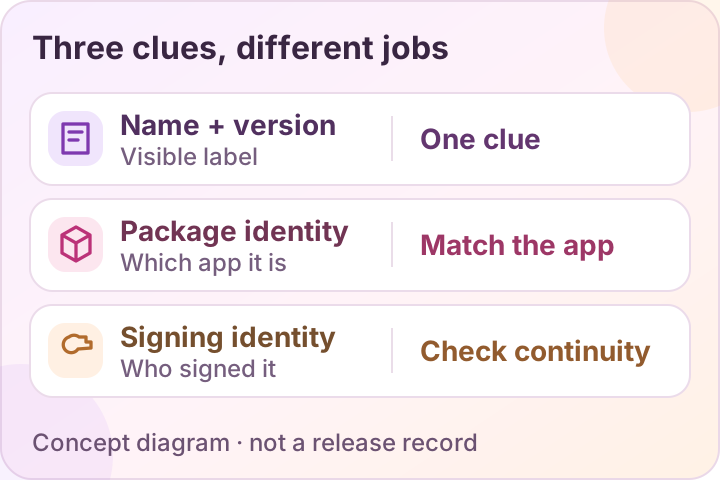
| Compare | Question to answer |
|---|---|
| Source | Does this release come from a publisher you can authenticate? |
| Package identifier | Does it belong to the same application, rather than a separate package? |
| Signing identity | Does the signature match the trusted prior record, allowing for valid signing-key rotation? |
| Requirements & changes | Does the exact build support your Android version, and what does its own changelog report? |
Start with the current source and release record. A higher display version or an in-app update notification does not answer these questions.
For a technical reviewer
apksigner is part of Android SDK Build Tools, not a setting on your phone. With the tool installed, apksigner verify --print-certs reviewed-file.apk checks signature validity and prints certificate information. It does not authenticate the person behind the signer or certify safe behavior. Do not modify or re-sign a package to make it install.
If there is no trustworthy prior identity record or authenticated update source, this guide cannot confirm continuity. No Insta Pro update or data-preservation test has been performed here.
SEE THE NEXT STEP
Visual checklists for this step
Simple guide diagrams to keep the important checks together.
Swipe through the checklists, or open a diagram to read it at full size.
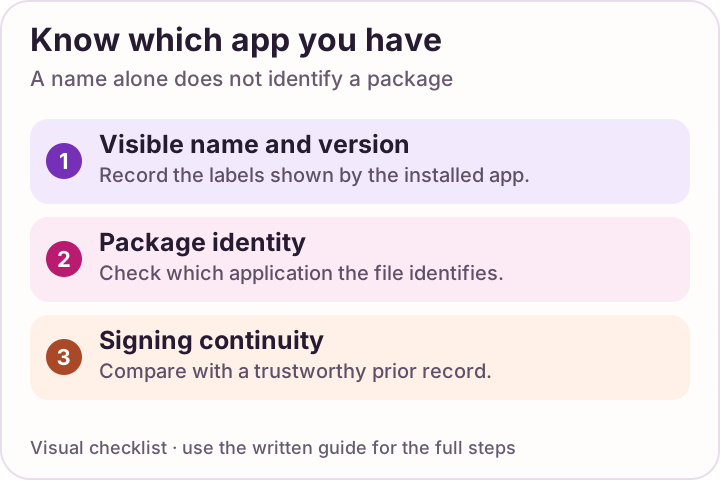 Enlarge checklist
Know your installed app
Find the version on your phone. Compare it with evidence for the exact package.
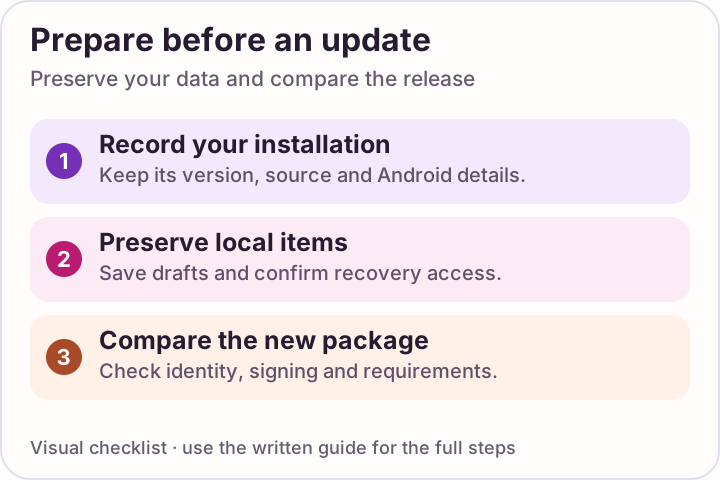 Enlarge checklist
Compare before updating
Review package identity and signing continuity before replacing an installation.
Read the update prompt before confirming
When the source and package checks support proceeding, follow the Android installation sequence. Keep Play Protect on, read Android’s message, and remove temporary installer permission afterward.
If Android treats the file as a new app when you expected an update, stop and compare the package. After a legitimate update, check the features and local items that matter to you rather than assuming they all carried over.
Can an older Insta Pro version fix the problem?
An older release is not a guaranteed fix for a new crash or login problem. Record when the problem began, the installed version and the exact failing action first. A previous client may still be incompatible with your phone or with changes in the service.
Searching for Insta Pro 15.70, 14.95, 14.85 or 6.20?
These version-specific searches need the same checks as a new release. A label such as “Insta Pro 3 14.85” or “Insta Pro 15 APK” does not identify a package by itself. Write down the version you intend to restore and why, then compare its package, signing identity, Android requirement and internal version code with the installed app.
- Identify the change you want to undo: an update, a new setting or a service-side problem.
- Preserve drafts, downloaded files and other important local items before considering removal.
- Find an identifiable source and a separate file record for the exact older release.
- Read Android’s actual installation message. Do not bypass a refusal by disabling security or installing another package with a similar name.
Visible version name
This is the release label shown to users. A number in a webpage title or filename does not establish the package’s identity or update relationship.
Internal version code
Android uses this value to distinguish releases. Its normal installation checks protect against installing a lower version code over the current app.
Local data and continuity
An older package still needs an authenticated source and compatible package/signing identity. If removal is required, preserve local items first; uninstalling can erase app data.
There is no verified older-release archive on this site. An archive would need a separate source, package record and requirements for each offered file, rather than a list of version numbers copied from search results.
Android’s versioning documentation explains version names, version codes and downgrade protection. For an installation conflict, keep the exact message and use the package-error checklist.
If the update fails or breaks a feature
Record the exact message and use troubleshooting for installation and app errors. A signing mismatch is not solved by disabling security or repeatedly opening the same file.
Do not uninstall immediately. It can erase app-local data. A downgrade may also be rejected or incompatible with newer app data, so an old mirror is not a reliable recovery plan.
If no legitimate supported update is available, official Instagram is an identified alternative for continued account access.
A FEW MORE ANSWERS
Questions, answered.
Will an update keep my drafts and settings?
That has not been tested for an Insta Pro build here. Preserve important local items first. An update, reinstall or downgrade should not be promised to retain everything.
Should I uninstall after a signature error?
Stop and compare the package and signing record first. Removing the old app can erase local data and does not prove the new file is legitimate.
Can Google Play update my modified client?
The official Instagram listing concerns Meta’s app. No Google Play update path for the modified Insta Pro clients discussed here has been verified.
Can I install an older version over the current one?
Android normally protects against installing a lower internal version code over an existing app. A visible version name is not the internal code. Check the exact package record and preserve local data before considering any removal; this site does not provide a verified older-release archive.
Where are Insta Pro 15.70, 14.95, 14.85 and 6.20 downloads?
This site does not offer an archive for those version labels. Each older file needs its own source, package and compatibility record. The current download destination should not be presented as an older release simply because you reached it through an old-version search.
How do I check whether a new Insta Pro version is an update?
Compare the installed and replacement packages, signing continuity and Android requirements. Read the replacement release’s stated changes. A bigger visible version number or a current year in the page title is not enough to establish update compatibility.
Sources & review notes
Guidance sources reviewed 10 October 2026. Menus and product behavior may change; use the linked instructions for your device.
- Android Developers: signing identity and app updates
- Android Developers: apksigner verification tool
- Android Open Source Project: signing-key rotation
- Android Developers: package and version information
- Android Developers: version codes, compatibility and downgrade protection
- Android Developers: declared minimum Android API level
- Google Android Help: fixing an installed app